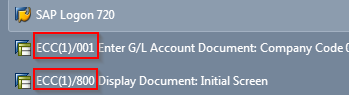
Show SAP System Name in Windows (SID)
Most of the advanced users are always using several sessions if not all of the permitted sessions. By default, this means they are opening 6 windows with something in which they are operating on. This increases productivity in most cases :). What if you have several sap systems (SID) or Clients which covers different areas of the business. In many big companies Finances are separated from the operational business as Logistics, Manufacturing, Sales & Distribution, etc. In that cases you have 2 or even more sap systems or clients.
The things are starting to get pretty when you have also one or more test systems behind every production system that you have. Then you have the real chance to have more than 12 windows opened at one. It looks like following screenshot:
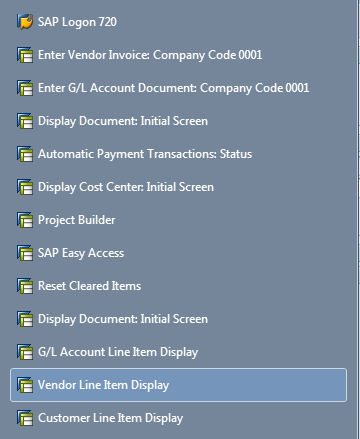
So in this case we have example with 12 windows opened at once from 2 different sap systems. At some points, it gets really difficult to operate in such environment. In most cases you will just close all the unnecessary windows while preserving those which you really need. So far so good, but the inconvenience of searching for the right SAP System (SID) will remain.
For visibility of your SAP System you could set it to show on the bottom right corner.
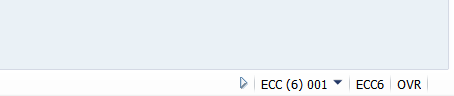
The easy solution for switching between screens in Windows will be adding the System Name in the Title. Use following steps:
1. Open regedit by simple search in MS Windows
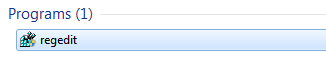
2. Go to: HKEY_CURRENT_USER\Software\SAP\SAPGUI Front\SAP Frontend Server\Administration
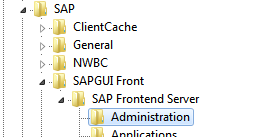
If you don't have Administration key (Folder), you should created it first.
3. Create DWORD(32-bit) Value with following Name and values
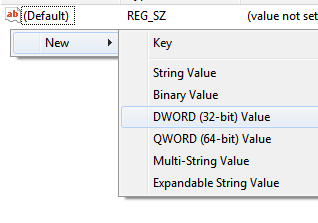
4. Rename the value to "ShowAdditionalTitleInfo"

5. Double click on it to activated by entering 1 as Value data
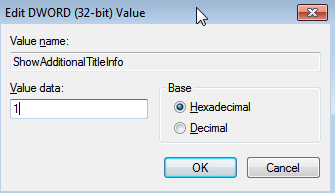
Click OK and then close and reopen your windows. You should have System name (SID) and Client number in the Title of window as in the following example: